Mbsm.tn, plugin wordpress, from Mbsmgroup, MBSM Pages Grid Pro, show all pages in one page Grid
mbsm-pages-grid-pro-technical-architecture-guide

Advanced Architectural Framework: Modular Content Routing with MBSM Pages Grid Pro

In the demanding environment of modern enterprise web development, the transition from simple hierarchical lists to a high-performance, modular content hub is essential. The MBSM Pages Grid Pro is not merely a visual enhancement; it is a sophisticated engineering solution designed to optimize the Document Object Model (DOM) while providing a granular level of control over user navigation paths. By decoupling visual presentation from the core WordPress page structure, this framework allows for a highly customized, data-driven user experience that prioritizes both speed and semantic clarity.

Technical Engineering: Logic and Data Integrity

The plugin is architected on a centralized data management model. Instead of polluting the post_meta table with fragmented entries, it utilizes the WordPress Options API to store all grid configurations in a single, high-performance array. This design choice significantly reduces database I/O overhead. Furthermore, the implementation of defensive programming techniques—such as wp_kses_post for data sanitization and strict nonce verification—ensures that the system maintains a high security posture against unauthorized administrative requests.

Comparative Engineering: Modular Grids vs. Standard Navigation

Feature Capability Standard WP Navigation MBSM Pages Grid Pro
Data Structure Linear / Nested List Multi-dimensional Grid
Media Integration Manual CSS/HTML Native Media API Support
Routing Logic Strict Internal Permalinks Hybrid Internal/External Links
Layout Control Theme Dependent CSS Grid (Self-Optimizing)
Admin UX Drag-and-Drop (limited) Centralized Configuration Hub

Quantitative Performance and Efficiency Metrics

From a structural engineering standpoint, the impact on site performance must be minimal. The MBSM Pages Grid Pro utilizes a modern CSS Grid layout that adapts fluidly to the viewport without the need for heavy JavaScript libraries. This results in faster Largest Contentful Paint (LCP) times and a more responsive interface across all device categories.

Performance Analysis Across CMS Architectures

Metric Static Page Templates Generic Builder Grids MBSM Pro Implementation
Server Load Low High (DB Intensive) Ultra-Low (Single Option)
Asset Size Variable Large (CSS/JS Bloat) Minimal (Inline CSS Logic)
DOM Depth Shallow Deep (Nested Divs) Optimized (Semantic Cards)
Adaptability Hardcoded Configurable Dynamic & Programmable

The Programmer’s Perspective: Clean Code and Scalability

Professional programming is the art of building systems that are as sustainable as they are functional. The programmer behind MBSM Pages Grid Pro has prioritized the use of native WordPress hooks, such as admin_init and admin_enqueue_scripts, to ensure that the plugin remains compatible with future core updates. By focusing on “clean code” principles, the architecture allows for easy expansion—such as adding AJAX-based filtering or custom taxonomy support—without refactoring the base logic.

Installation and Technical Implementation Guide

Building the Environment (Installation)

  1. Direct Integration: Deploy the plugin directory to /wp-content/plugins/.

  2. Activation Sequence: Upon activation via the WordPress Dashboard, the system initializes the mbsm_pages_grid_pro_data option key.

  3. Environment Check: Ensure the server environment supports PHP 7.4+ to leverage optimized array functions for sorting and sanitization.1


Utilization and Operational Procedures

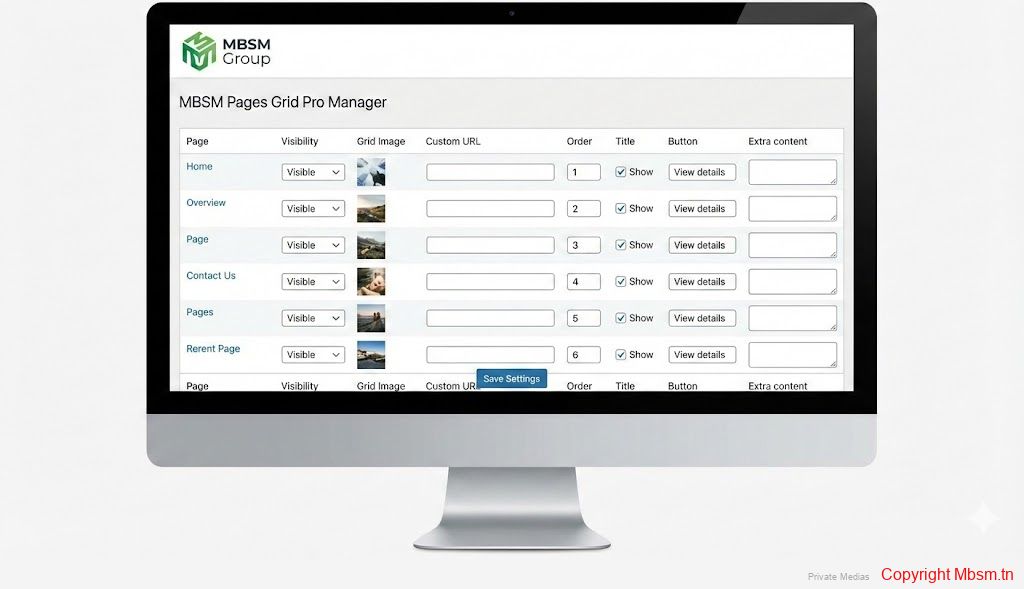
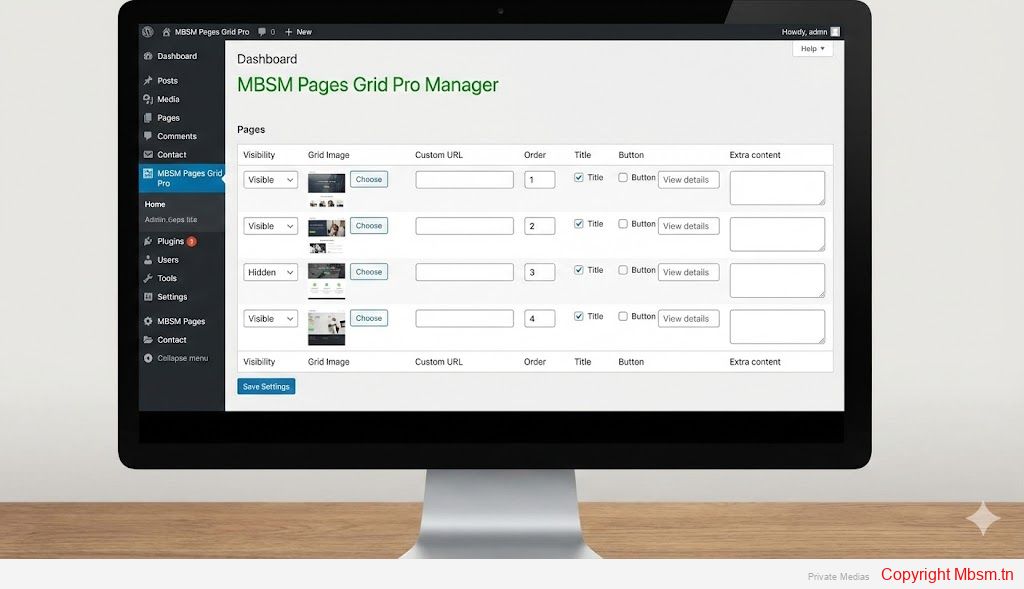
  1. Configuration Interface: Navigate to the dedicated “MBSM Pages Grid Pro” menu in the admin sidebar.

  2. Data Population: For each page, you can independently assign a custom thumbnail from the Media Library, define a redirected URL, and set the display order.

  3. Shortcode Deployment: The system is triggered via the [mbsm_pages_grid_pro] shortcode. This can be embedded in any standard page or post editor.

Shortcode Attributes and Logic

To customize the output on specific sections of your site, the shortcode supports a column attribute:

  • [mbsm_pages_grid_pro columns="3"]: Generates a balanced three-column layout.

  • [mbsm_pages_grid_pro columns="4"]: Optimizes space for high-density content portfolios.

Strategic Insights and Benefits

  • SEO Siloing: Use the grid to create “siloed” content sections, which helps search engine crawlers understand topical authority and improves internal link equity.2


  • Conversion Optimization: By using the “Custom Button Text” and “Extra Content” fields, you can turn a simple link into a high-converting call to action.

  • Operational Agility: Use the visibility toggle to pre-configure product or service cards and launch them instantly without touching the page’s “Publish” status.

Engineer’s Notice: For the highest aesthetic standard, it is recommended to use images with a consistent 4:3 or 16:9 aspect ratio. This ensures the grid maintains a perfect vertical rhythm across all browser resolutions.


Focus Keyphrase

Professional WordPress Grid Architecture with MBSM Pages Grid Pro Plugin

SEO Title

MBSM Pages Grid Pro: Advanced Modular Page Management for WordPress

Meta Description

Optimize your WordPress site with MBSM Pages Grid Pro. A professional engineering solution for creating responsive page grids, custom URLs, and visual navigation hubs with high-performance code.

Slug

mbsm-pages-grid-pro-technical-architecture-guide

Tags

Mbsmgroup, Mbsm.pro, mbsmpro.com, mbsm, WordPress Programming, Web Engineering, PHP Development, CSS Grid, Responsive Design, Professional Plugin, Media Management, SEO Optimization

Excerpt

MBSM Pages Grid Pro is a high-performance modular framework designed for professional WordPress environments. By decoupling visual presentation from site structure, it offers developers a robust tool for creating SEO-friendly, data-driven page hubs. This guide details the installation, programming logic, and strategic implementation of this sophisticated grid system.
mbsm-pages-grid-pro-technical-architecture-guide


Show exemple
Mbsm-tn-private-media_mbsm_pages_grid-DOWNLOAD


Mbsm.tn, Plugins wordpress 2024, Media Control Plugin: Full Control Over Media on Your WordPress Site, by Mbsmgroup

In today’s digital world, managing media files on a website is crucial for enhancing user experience and ensuring fast website performance. Among the available tools for website administrators, the Media Control plugin stands out as a powerful and effective solution for managing and displaying various media types on WordPress sites. This plugin is not just any ordinary tool; it is the result of meticulous development by Mbsmgroup, a team of skilled developers dedicated to providing a comprehensive tool that combines ease of use with high performance, while focusing on security and optimization.

Introduction to the Plugin

The Media Control plugin provides users with complete control over displaying various types of media, such as images, videos, audio files, PDFs, and ZIP files on their WordPress sites. The plugin is designed to be highly flexible, allowing customization of settings for displaying different media types, while offering pagination to manage a large number of files efficiently.

Key Features of the Plugin

  1. Advanced Media Filtering: Users can filter the types of media they wish to display on their site. For example, they can choose to display only images or combine video and audio files in the same gallery.
  2. Integrated Pagination: The plugin makes it easy for visitors to navigate through a large number of files by dividing the content into pages, helping improve website load time and enhancing the user experience.
  3. Attractive Media Display: The plugin supports an organized and visually appealing display of media files that blends well with the overall design of the site. Media files like images, videos, and audios are displayed neatly with customizable templates.
  4. Security and Filtering: A strong focus on security is evident in the plugin’s design. It automatically filters out file types that may pose security risks, such as PHP, CSS, and JS, ensuring the site remains safe from vulnerabilities.
  5. Media Linked to Posts: Each media item is linked to the original post it belongs to, making it easy for visitors to navigate back to the post where the media is featured.

Security First: Ensuring Maximum Protection

One of the standout features of the Media Control plugin is its strong focus on security. In today’s online world, websites are constantly exposed to various security threats, especially when it comes to downloadable media files. The plugin is designed to ensure that only safe and legitimate files are displayed on the site. File types like PHP, CSS, and JS are explicitly excluded from being displayed, protecting the site from malicious code that could compromise its security.

The plugin only allows commonly used media files such as JPEG, PNG, GIF images, MP4, and MOV videos, and MP3 audio files to be shown, making sure that no harmful files are allowed to infiltrate the site.

Powerful Programming and Performance

Another major strength of the Media Control plugin is the advanced programming behind it, which follows best practices in WordPress development. The plugin is built using PHP and MySQL, ensuring fast and efficient performance even on websites with a large number of media files. The media files are loaded progressively (Lazy Load) with pagination support, minimizing memory consumption and improving page load speeds.

Additionally, the plugin is perfectly integrated with the WordPress ecosystem, ensuring that it can be added to any existing site without negatively impacting overall performance. It also supports the use of shortcodes, making it easy to embed media galleries anywhere on your site.

Continuous Development and Maintenance

The Media Control plugin is under continuous development by the team at Mbsmgroup, ensuring that it receives regular updates. These updates include performance improvements, new features, and compatibility with the latest versions of WordPress. The team is also responsive to user feedback, allowing for necessary tweaks to further improve the user experience.

Ease of Use and Customization

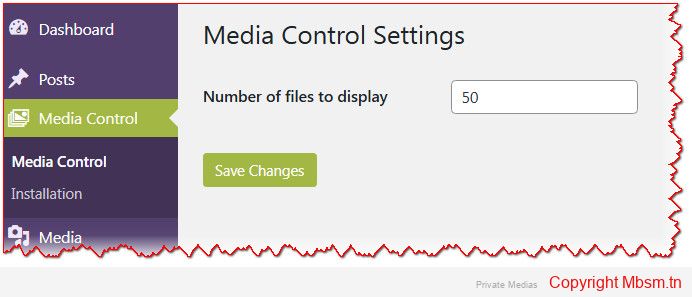
The Media Control plugin’s interface is simple to navigate, making it easy for anyone, regardless of technical expertise, to manage media files on their site. Through the plugin’s settings page in the WordPress dashboard, users can define how many media items to display per page and customize the types of files allowed.

Furthermore, the plugin provides shortcodes, which allow users to display media galleries anywhere on their site easily. This means you can quickly embed a gallery or display specific media files in any page or post on your website.

Conclusion

The Media Control plugin is an essential tool for anyone looking to manage media on their WordPress site effectively. With its advanced customization options, user-friendly interface, and focus on security, it offers the perfect solution for websites that need to display a large amount of media safely and efficiently.

Developed by Mbsmgroup, the plugin combines security with performance, making it one of the best choices available in the market. Whether you’re looking to enhance the management of media files on your site, improve security, or ensure faster load times, Media Control is the plugin you need.

Developer of the Plugin: The plugin was developed by Mbsmgroup, a team of experts with extensive experience in WordPress development, who continue to ensure the plugin is maintained and updated for optimal performance.

Media Control Plugin: Installation, Usage, and Shortcode Search Functionality

Exemple

The Media Control plugin is a highly efficient tool designed to help WordPress users easily manage, display, and optimize media files on their websites. Whether you are dealing with a large volume of media or need a flexible solution for filtering and displaying files, this plugin offers powerful features with a focus on performance, security, and SEO optimization. In this article, we’ll walk you through the installation, usage, and effective utilization of the shortcode search functionality to make the most out of this plugin.


Installation of the Media Control Plugin

Installing the Media Control plugin is a simple and straightforward process. Just follow these steps:

  1. Download the Plugin:

    • You can download the plugin either from the Here or directly from the developer’s website, Mbsmgroup.

  2. Install via WordPress Dashboard:

    • Log in to your WordPress dashboard.
    • Go to Plugins > Add New.
    • Click on the Upload Plugin button at the top of the page.
    • Select the downloaded ZIP file and click on Install Now.
    • After installation, click on the Activate button to activate the plugin on your site.

  3. Plugin Activated:

    • After activation, the plugin will create a new menu item called Media Control in the WordPress admin panel where you can configure and manage the plugin’s settings.


Configuring the Media Control Plugin

Once the plugin is installed and activated, you can configure it to fit your needs. Here’s how:

  1. Navigate to the Settings:

    • Go to the Media Control menu in your WordPress admin dashboard.
    • Click on Media Control Settings.

  2. Configure the Settings:

    • On the settings page, you will find options to define the number of media files to display per page.
    • You can also choose the types of media to be displayed, such as images, PDFs, videos, or audio files.
    • Make sure to configure these settings according to your preference and website needs.

  3. Save Your Settings:

    • Once you’ve made your adjustments, click Save Changes to apply the new settings.


How to Use the Media Control Plugin

The Media Control plugin is designed to be user-friendly, and once installed, it integrates smoothly with your WordPress website. Here’s how you can use the plugin to display and manage your media:

  1. Displaying Media with Pagination:

    • The plugin displays media in an organized and clean gallery. One of its standout features is the built-in pagination, which ensures faster load times by displaying a limited number of media items per page. This is particularly beneficial when you have a large number of media files on your site.

  2. Access Media Information:

    • Each media item displayed is linked to its original post, making it easy for users to visit the post where the media was initially featured.
    • The plugin also offers previews for images, audio, and video files, along with downloadable links for files such as PDFs and ZIP files.

  3. Filter Media by Type:

    • With the plugin, you can filter media by file type. You can choose to display images, audio, video, PDF, ZIP, or other media formats, offering greater flexibility and control over what content is shown.


Shortcode for Displaying Media

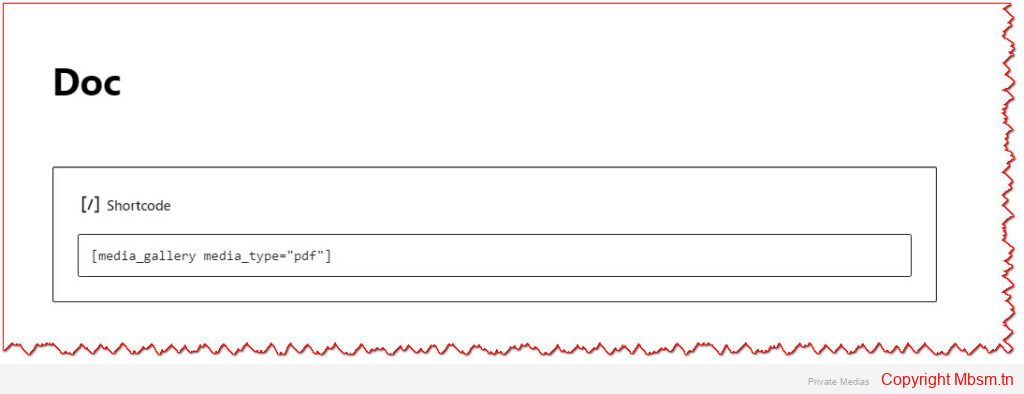
One of the most powerful features of the Media Control plugin is its shortcode functionality. Shortcodes make it easy to insert media galleries anywhere on your WordPress site—whether in posts, pages, or widgets. You can define exactly what types of media you want to display and control how they appear on your site.

Shortcode Example:

[media_gallery media_type="image, video" media_count="10"]

Parameters Explained:

  1. media_type:

    • This parameter allows you to specify which types of media you want to display. You can specify multiple types by separating them with commas. For example, use "image, video" to display both images and videos.
    • Supported media types include: image, audio, video, pdf, zip.

  2. media_count:

    • This parameter determines how many media files will be displayed per page. You can set a custom number to limit the number of files shown, optimizing your site’s load time and usability.

How to Use the Shortcode:

  • You can place this shortcode in any page, post, or widget to display a media gallery with the selected file types and pagination.
  • For example, if you want to display 10 images and videos on a page, add the following shortcode to your page content:

[media_gallery media_type="image, video" media_count="10"]

Once the shortcode is added, the plugin will display the media files according to the parameters you’ve defined.