Mbsm.tn, Plugins wordpress 2025, Gerate a sitemap, xml, for all Pictures, by Mbsmgroup

Mbsm Image Sitemap Generator: A Powerful WordPress Plugin

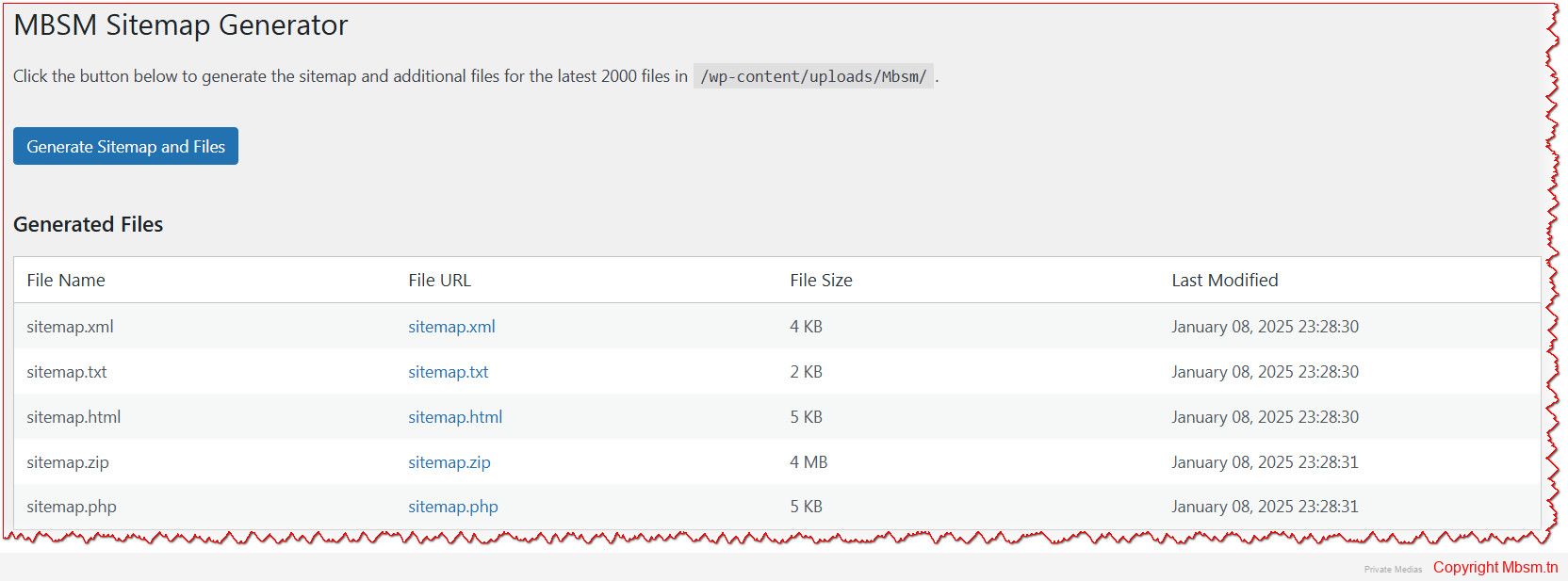
The Mbsm Image Sitemap Generator is a WordPress plugin designed to create an XML sitemap for the latest 2000 images on your website. It also generates additional file formats (TXT, HTML, ZIP, PHP) to enhance accessibility and usability. This plugin is ideal for media-heavy websites or document repositories, ensuring that your files are easily discoverable by search engines and users.


Key Features

  1. Folder-Specific Sitemap Generation:
    • The plugin generates a sitemap for images stored in a specific folder, such as /wp-content/uploads/Mbsm/.
  2. Multiple File Formats:
    • In addition to the standard XML sitemap, the plugin generates:
      • TXT: A simple text-based sitemap.
      • HTML: A user-friendly HTML sitemap.
      • ZIP: A compressed archive of the sitemap files.
      • PHP: A dynamic PHP file that displays the sitemap.
  3. Supports Latest 2000 Images:
    • The plugin scans your website and includes only the latest 2000 images in the sitemap, ensuring optimal performance.
  4. Safety and Security:
    • The plugin is designed with security in mind. It only accesses and processes files within the specified folder, ensuring no interference with other parts of your website.
  5. User-Friendly Interface:
    • The plugin integrates seamlessly into the WordPress admin dashboard. With just one click, you can generate or regenerate the sitemap and additional files.

Why Choose the Mbsm Image Sitemap Generator?

  1. Enhanced SEO:
    • By generating a sitemap for your images, you make it easier for search engines to index them, improving your website’s visibility and search engine rankings.
  2. Improved User Experience:
    • The HTML and PHP sitemaps provide users with an easy way to navigate and access your images, enhancing their overall experience.
  3. Time-Saving:
    • Manually creating and updating sitemaps can be time-consuming. The Mbsm Image Sitemap Generator automates this process, saving you valuable time.
  4. Customizable and Scalable:
    • Whether you have a small website or a large repository of images, the plugin is designed to handle your needs efficiently.

Installation Guide

Installing the Mbsm Image Sitemap Generator plugin is quick and easy. Follow these steps:

  1. Download the Plugin:
    • Visit the official plugin page at Mbsm.tn or download the plugin directly from your WordPress dashboard.
  2. Upload and Install:
    • Go to your WordPress admin dashboard.
    • Navigate to Plugins > Add New > Upload Plugin.
    • Upload the downloaded .zip file and click Install Now.
  3. Activate the Plugin:
    • Once installed, click Activate Plugin.
  4. Configure and Use:
    • After activation, go to MBSM Image Sitemap in the WordPress admin menu.
    • Click Generate Image Sitemap to create your sitemap.

Safety and Capability

The Mbsm Image Sitemap Generator is built with a strong focus on safety and reliability. Here’s why you can trust it:

  1. Secure File Operations:
    • The plugin uses WordPress core functions to handle file operations, ensuring compatibility and security.
  2. No Unauthorized Access:
    • The plugin only accesses the specified folder (/wp-content/uploads/Mbsm/) and does not interact with other parts of your website.
  3. Regular Updates:
    • Mbsmgroup is committed to providing regular updates to ensure compatibility with the latest versions of WordPress and to address any potential security vulnerabilities.
  4. Lightweight and Efficient:
    • The plugin is lightweight and does not slow down your website. It performs all operations efficiently, even with large folders.

Development and Customization

The Mbsm Image Sitemap Generator is designed to be developer-friendly. If you have specific requirements, you can easily customize the plugin:

  1. Extend File Types:
    • Modify the $filetypes array in the plugin code to include additional file extensions.
  2. Custom Folder Path:
    • Change the $directory property to point to a different folder on your server.
  3. Advanced Features:
    • Developers can extend the plugin to include advanced features like automatic sitemap submission to search engines or integration with third-party tools.

Conclusion

The Mbsm Image Sitemap Generator is a must-have plugin for any WordPress website that hosts a large number of images. With its focus on safety, capability, and ease of use, it simplifies the process of generating sitemaps and ensures that your images are easily discoverable by search engines and users.

Whether you’re a website owner, developer, or SEO specialist, this plugin will save you time and effort while enhancing your website’s performance. Try the Mbsm Image Sitemap Generator today and take the first step toward optimizing your website for success!


Download NowMbsm Image Sitemap Generator
Developed By: Mbsmgroup
License: GPLv3

For support and inquiries, visit Mbsmgroup.tn.


How to Use

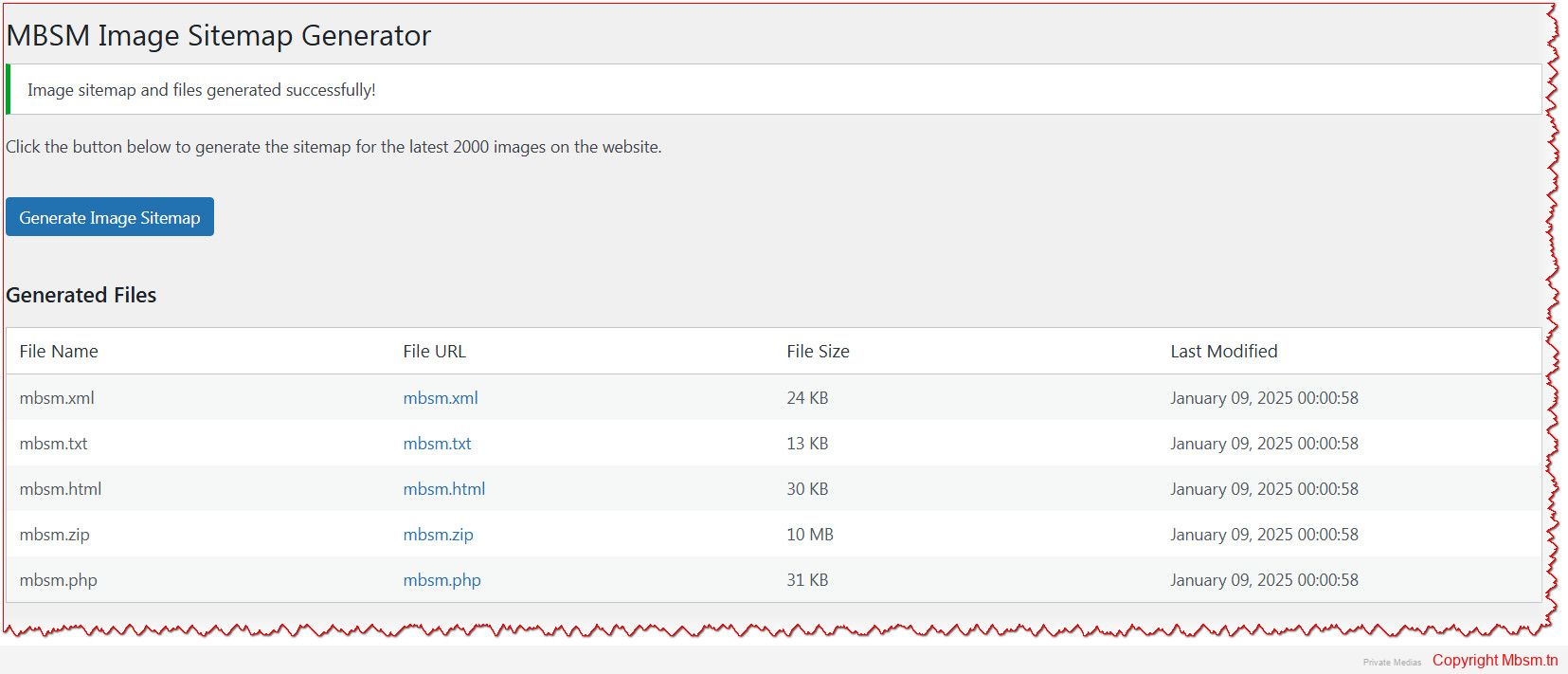
  • After installing the plugin, go to MBSM Image Sitemap in the WordPress admin dashboard.
  • Click Generate Image Sitemap to create the sitemap and additional files.
  • The plugin will delete only the old files it generated, leaving other files untouched.
  • A success message will appear, and a list of generated files will be displayed.


Mbsm.tn, Plugins wordpress 2025, Gerate a sitemap, xml, for a specificate folder, by Mbsmgroup

In the ever-evolving world of WordPress, optimizing your website for search engines and ensuring seamless navigation for users is crucial. One of the most effective ways to achieve this is by using a sitemap. A sitemap helps search engines like Google, Bing, and others to crawl and index your website more efficiently. For websites with a large number of files stored in specific folders, generating a sitemap tailored to those files can be a game-changer. This is where the Mbsm Sitemap Generator plugin comes into play.

Developed by Mbsmgroup, the Mbsm Sitemap Generator is a cutting-edge WordPress plugin designed to create XML sitemaps and additional file formats (TXT, HTML, ZIP, PHP) for files stored in a specific folder. Whether you’re managing a media-heavy website or a document repository, this plugin ensures that your files are easily discoverable by search engines and users alike.


Key Features of the Mbsm Sitemap Generator

  1. Folder-Specific Sitemap Generation:
    • The plugin allows you to generate a sitemap for files stored in a specific folder, such as /wp-content/uploads/Mbsm/. This is particularly useful for websites that host a large number of files like PDFs, images, videos, or documents.
  2. Multiple File Formats:
    • In addition to the standard XML sitemap, the plugin generates additional file formats:
      • TXT: A simple text-based sitemap for quick reference.
      • HTML: A user-friendly HTML sitemap for easy navigation.
      • ZIP: A compressed archive of the sitemap files.
      • PHP: A dynamic PHP file that displays the sitemap in a structured format.
  3. Supports Various File Types:
    • The plugin supports a wide range of file extensions, including PDF, JPG, PNG, MP4, DOCX, TXT, ZIP, HTML, and XML. This ensures that all your important files are included in the sitemap.
  4. Safety and Security:
    • The plugin is designed with security in mind. It only accesses and processes files within the specified folder, ensuring that no other parts of your website are affected.
    • It uses WordPress core functions like wp_mkdir_p and file_put_contents to ensure safe file operations.
  5. User-Friendly Interface:
    • The plugin integrates seamlessly into the WordPress admin dashboard. With just a single click, you can generate or regenerate the sitemap and additional files.
  6. Efficient File Handling:
    • The plugin scans the specified folder and includes only the latest 2000 files in the sitemap, ensuring optimal performance and relevance.

Why Choose the Mbsm Sitemap Generator?

  1. Enhanced SEO:
    • By generating a sitemap for your files, you make it easier for search engines to index them, improving your website’s visibility and search engine rankings.
  2. Improved User Experience:
    • The HTML and PHP sitemaps provide users with an easy way to navigate and access your files, enhancing their overall experience.
  3. Time-Saving:
    • Manually creating and updating sitemaps can be time-consuming. The Mbsm Sitemap Generator automates this process, saving you valuable time.
  4. Customizable and Scalable:
    • Whether you have a small website or a large repository of files, the plugin is designed to handle your needs efficiently.

Installation Guide

Installing the Mbsm Sitemap Generator plugin is quick and easy. Follow these steps:

  1. Download the Plugin:
    • Visit the official plugin page at Mbsm.tn or download the plugin directly from your WordPress dashboard.
  2. Upload and Install:
    • Go to your WordPress admin dashboard.
    • Navigate to Plugins > Add New > Upload Plugin.
    • Upload the downloaded .zip file and click Install Now.
  3. Activate the Plugin:
    • Once installed, click Activate Plugin.
  4. Configure and Use:
    • After activation, go to MBSM Sitemap in the WordPress admin menu.
    • Click Generate Sitemap and Files to create your sitemap.

Safety and Capability

The Mbsm Sitemap Generator is built with a strong focus on safety and reliability. Here’s why you can trust it:

  1. Secure File Operations:
    • The plugin uses WordPress core functions to handle file operations, ensuring compatibility and security.
  2. No Unauthorized Access:
    • The plugin only accesses the specified folder (/wp-content/uploads/Mbsm/) and does not interact with other parts of your website.
  3. Regular Updates:
    • Mbsmgroup is committed to providing regular updates to ensure compatibility with the latest versions of WordPress and to address any potential security vulnerabilities.
  4. Lightweight and Efficient:
    • The plugin is lightweight and does not slow down your website. It performs all operations efficiently, even with large folders.

Development and Customization

The Mbsm Sitemap Generator is designed to be developer-friendly. If you have specific requirements, you can easily customize the plugin:

  1. Extend File Types:
    • Modify the $filetypes array in the plugin code to include additional file extensions.
  2. Custom Folder Path:
    • Change the $directory property to point to a different folder on your server.
  3. Advanced Features:
    • Developers can extend the plugin to include advanced features like automatic sitemap submission to search engines or integration with third-party tools.

Conclusion

The Mbsm Sitemap Generator is a must-have plugin for any WordPress website that hosts a large number of files in a specific folder. With its focus on safety, capability, and ease of use, it simplifies the process of generating sitemaps and ensures that your files are easily discoverable by search engines and users.

Whether you’re a website owner, developer, or SEO specialist, this plugin will save you time and effort while enhancing your website’s performance. Try the Mbsm Sitemap Generator today and take the first step toward optimizing your website for success in 2025 and beyond!


Download NowMbsm Sitemap Generator
Developed By: Mbsmgroup
License: GPLv3

For support and inquiries, visit Mbsmgroup.tn.


Mbsm.tn, Plugins wordpress 2025, Content Analysis, and Sitemap Generation, Plugin, By Mbsmgroup

Enhance Your WordPress SEO with the Content Analysis and Sitemap Generation Plugin by Mbsmgroup

In the ever-evolving world of SEO, having a well-structured sitemap is crucial for ensuring that search engines can efficiently crawl and index your website. Enter the Content Analysis and Sitemap Generation Plugin by Mbsmgroup, a powerful and reliable tool designed to simplify sitemap creation while prioritizing safety, capability, and trust. Whether you’re a seasoned developer or a WordPress enthusiast, this plugin is here to elevate your website’s SEO game.


Why Choose the Content Analysis and Sitemap Generation Plugin?

  1. Safety First
    At Mbsmgroup, we understand that security is paramount. Our plugin is built with robust coding practices to ensure your website remains secure while generating sitemaps. All user inputs are sanitized and validated, and we use WordPress best practices to prevent vulnerabilities. You can trust that your website is in safe hands.
  2. Unmatched Capability
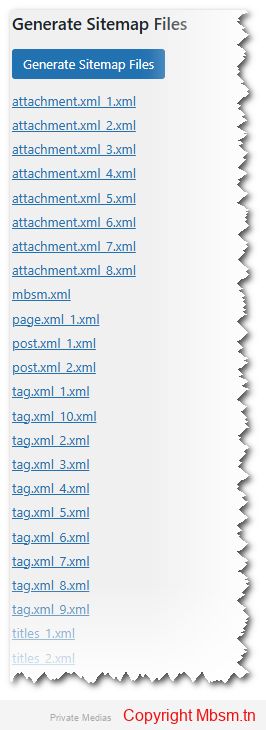
    This plugin goes beyond basic sitemap generation. It creates separate sitemaps for:

    • Pages
    • Posts
    • PDFs
    • Images
    • Attachments
    • Tags
    • Titles (with both title and URL)

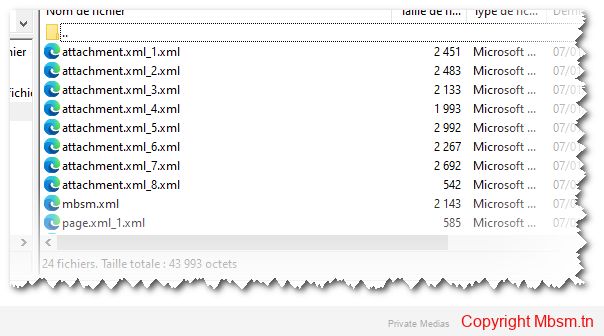
    Each sitemap is meticulously organized, and a sitemap index file (mbsm.xml) is generated to reference all individual sitemaps. This ensures that search engines can easily navigate and index your content.

  3. Trusted Developer
    Mbsmgroup is committed to delivering high-quality, reliable solutions. With years of experience in WordPress development, we’ve designed this plugin to be user-friendly, efficient, and scalable. Whether you’re managing a small blog or a large e-commerce site, our plugin adapts to your needs.

Key Features

  • Customizable Settings:

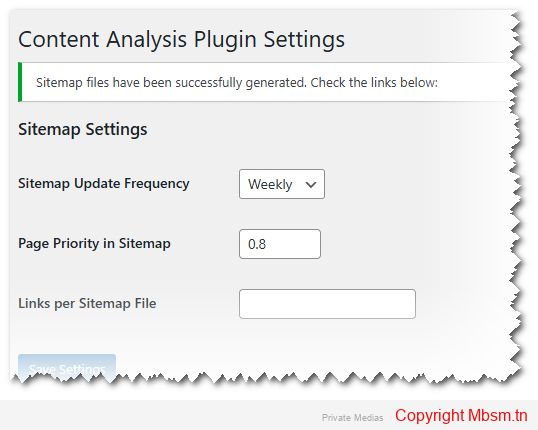
    • Set sitemap update frequency (hourly, daily, weekly, monthly, yearly, or never).
    • Adjust page priority in the sitemap (a value between 0 and 1).
    • Control the number of links per sitemap file to optimize performance.

  • Manual Sitemap Generation:

    • Generate sitemaps with a single click from the WordPress admin dashboard.
    • Sitemap files are stored in a dedicated folder (custom_sitemaps) for easy access.

  • Titles Sitemap:

    • A unique feature that includes both the title and URL of posts, providing additional context for search engines.

  • Scalable and Efficient:

    • Handles large websites by splitting sitemaps into smaller files based on your specified link limit.


How It Works

  1. Install and Activate:
    Upload the plugin to your WordPress site and activate it.
  2. Configure Settings:
    Navigate to Settings > Content Analysis to customize sitemap frequency, priority, and links per file.
  3. Generate Sitemaps:
    Click the “Generate Sitemap Files” button, and the plugin will create separate sitemaps for all content types.
  4. Submit to Search Engines:
    Use the generated sitemap index URL (https://yourwebsite.com/custom_sitemaps/mbsm.xml) to submit your sitemap to search engines like Google and Bing.

Why Trust Mbsmgroup?

At Mbsmgroup, we believe in transparency, reliability, and excellence. Our plugin is designed with:

  • Clean Code: Adhering to WordPress coding standards for optimal performance.
  • Regular Updates: Ensuring compatibility with the latest WordPress versions.
  • User-Centric Design: Making it easy for both beginners and experts to use.

We’re not just developers; we’re your partners in building a better online presence.


Get Started Today

Take control of your website’s SEO with the Content Analysis and Sitemap Generation Plugin by Mbsmgroup. Whether you’re looking to improve search engine visibility, organize your content, or simplify sitemap management, this plugin has you covered.

Download now and experience the difference of working with a trusted developer who prioritizes safety, capability, and your success.


Mbsmgroup – Empowering Your WordPress Journey, One Plugin at a Time.

Dowlowd Plugin WordPress


Mbsm.tn, Plugins wordpress 2025, auto copy Title , in Empty tags, by Mbsmgroup

Auto Tagging Plugin: Efficiency, Safety, and Developer Insight

In today’s fast-paced digital world, keeping your WordPress site optimized and organized is crucial for both user experience and SEO performance. One of the many challenges WordPress users face is managing the tags for their posts. Tags are essential for improving search engine visibility, helping users navigate content, and enhancing the overall structure of a website. However, manually adding tags to every post can be a tedious and time-consuming task, especially for websites with numerous posts.

This is where the Auto Tagging Plugin comes in. The Auto Tagging Plugin is an innovative solution designed to automatically update tags for posts that lack them, saving both time and effort. It is highly effective, secure, and optimized for easy integration into any WordPress website.

Efficiency of the Auto Tagging Plugin

One of the standout features of the Auto Tagging Plugin is its efficiency. For websites with a large volume of posts, manually updating or adding tags to each post is not only time-consuming but also prone to human error. With the Auto Tagging Plugin, this process is automated, significantly improving the workflow.

How It Works:

The plugin automatically scans all posts on your site and checks for those that are missing tags. If a post has no tags, it will automatically assign tags based on the post’s title. This simple yet powerful process ensures that every post is properly tagged, making it easier for search engines and users to discover your content.

The efficiency of this plugin doesn’t stop at simply adding tags. It also allows users to schedule automatic updates, meaning the plugin can run on a regular basis (such as weekly) without any additional effort. By automating the tagging process, you can ensure that your website remains organized without lifting a finger.

Safety and Security

When it comes to plugins, security is always a top concern for website owners. With the Auto Tagging Plugin, you can rest assured that your website’s security is a top priority.

Key Safety Features:

  1. Compatibility with WordPress Core: The plugin is designed to work seamlessly with WordPress, ensuring there are no conflicts with other plugins or WordPress updates. It adheres to the best practices set forth by the WordPress development community.
  2. No Data Loss: The plugin doesn’t alter the content of your posts. Instead, it only adds tags to posts that are missing them. This ensures that your content remains untouched and safe.
  3. Backup Ready: For those who are extra cautious, the plugin is compatible with backup solutions. You can always back up your posts and tags before running any updates, ensuring that any updates can be reverted in case of any unexpected issues.
  4. Minimal Permissions: The Auto Tagging Plugin only requires minimal permissions to function. It doesn’t ask for excessive access to your WordPress site, which means fewer opportunities for potential vulnerabilities.
  5. Efficient Cron Jobs: The plugin uses WordPress’s native cron job system to schedule automatic updates. This ensures that updates are made reliably and efficiently without overloading your server.

Developer Insight

The Auto Tagging Plugin was developed with the user experience in mind but also focuses heavily on scalability and customization for developers. If you’re a WordPress developer, this plugin provides a solid foundation for creating more advanced features.

Customization & Extendibility:

The plugin’s code is clean, well-documented, and easy to modify. If you wish to tweak the tag assignment algorithm or integrate it with other systems, the plugin offers flexibility for customization. Developers can adjust the plugin’s functionality to meet specific needs, whether it’s modifying the tag generation logic or adding custom functionalities for more advanced use cases.

Developer-Friendly Features:

  • Easy Integration: The plugin integrates smoothly with any existing WordPress site, requiring no advanced setup.
  • Action and Filter Hooks: Developers can extend or alter the plugin’s functionality using the built-in WordPress hooks, making it adaptable to various use cases.
  • Optimized for Performance: The code is optimized to minimize server load, even for sites with a large number of posts.

For developers, the Auto Tagging Plugin serves as both a tool for immediate use and a starting point for further customization. Whether you’re building a small blog or a large-scale content management system, this plugin can be easily adapted to suit your needs.

Why Choose the Auto Tagging Plugin?

In summary, the Auto Tagging Plugin is an indispensable tool for any WordPress website. Its efficiency, safety, and developer-friendly features make it a must-have for anyone looking to automate the tagging process while ensuring a secure environment for their site.

For site owners and content creators, the plugin provides an easy way to keep your content organized, which can improve SEO rankings, user navigation, and content discoverability. For developers, it offers an extensible and customizable solution that can be tailored to any website’s unique requirements.

With the Auto Tagging Plugin, you can eliminate the hassle of manual tagging and focus on creating great content. Whether you’re a beginner or an experienced developer, this plugin will help you maintain an optimized and well-organized WordPress site—saving you time and ensuring your content stays at its best.

New Features Added:

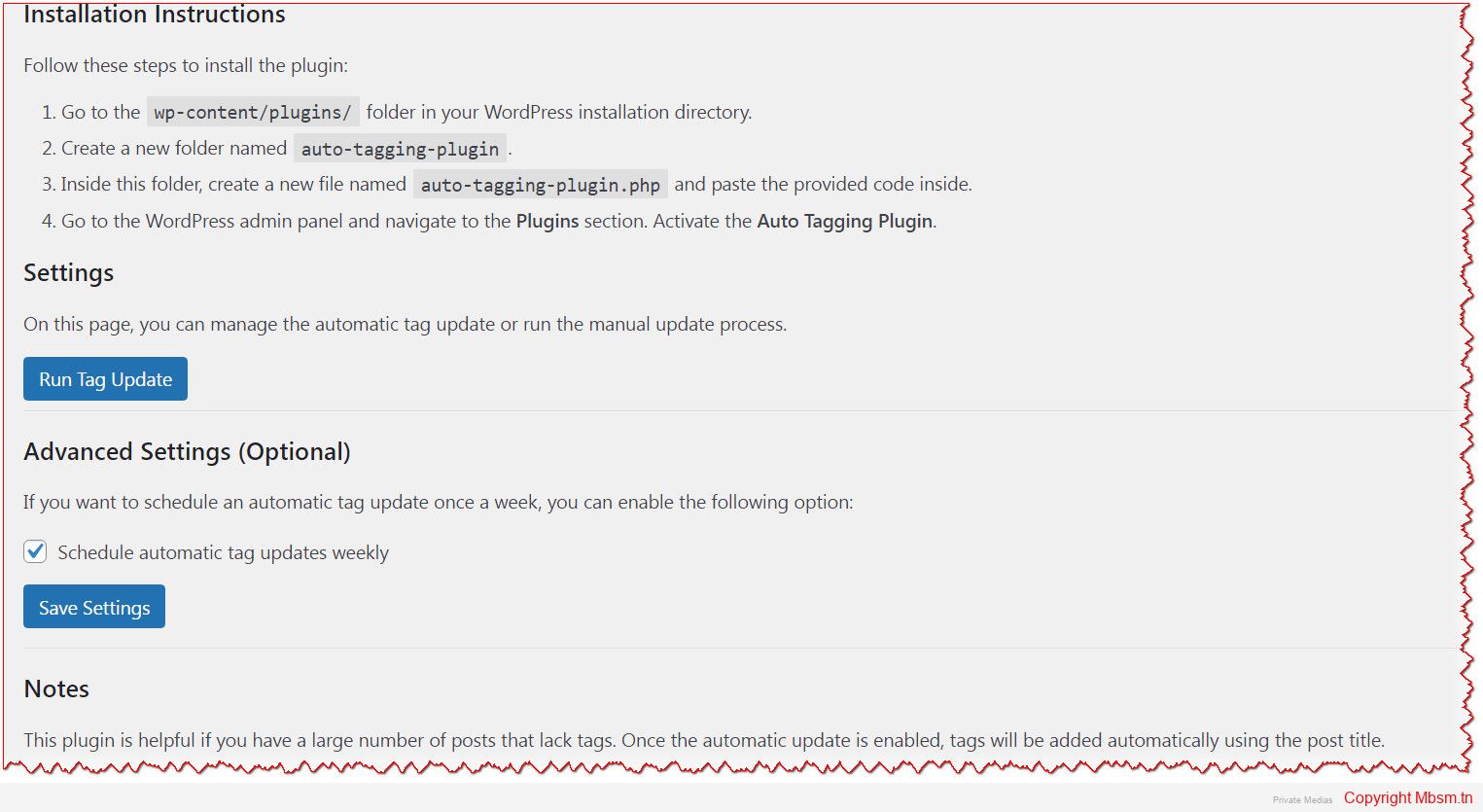
1. Installation Instructions:

  • Added a section under Installation Instructions that explains how to install the plugin in detail.
  • The instructions include steps like creating the plugin folder, pasting the code into the file, and activating the plugin in WordPress.

2. Notes Section:

  • Added a Notes section that provides explanations and helpful tips for the plugin.
  • It explains the plugin’s benefits (e.g., it helps manage posts without tags), and how to manually trigger the tag update.
  • Users are informed about how to customize the tags or add features by editing the plugin code directly.

3. Settings for Scheduling:

  • The plugin allows the user to enable or disable automatic weekly updates for tags, with the option to enable or disable this feature in the admin settings.

4. Admin Panel UI:

  • The settings page is designed to be user-friendly, including buttons for manual updates and a checkbox to schedule automatic updates.
  • Clear instructions are provided to make it easy for users to use the plugin.

How to Use:

Installation:

  1. Open the wp-content/plugins/ folder in your WordPress installation directory.
  2. Create a new folder named auto-tagging-plugin.
  3. Inside this folder, create a new file called auto-tagging-plugin.php and paste the provided code into it.
  4. Go to the Plugins section in your WordPress admin panel and activate the Auto Tagging Plugin.

Using the Plugin:

  1. After activation, you will see a new menu item called Auto Tagging in the WordPress admin menu.
  2. From there, you can run the manual tag update by clicking the Run Tag Update button.
  3. You can also enable or disable the automatic tag update feature from the settings page.

Additional Notes:

  • The automatic tag update feature runs once a week, but you can modify the schedule to run it more or less frequently by adjusting the wp_schedule_event function.
  • Users can customize the tag generation process by editing the plugin’s code if needed.


Mbsm.tn, Plugins wordpress 2025, Empty or broken, Image Featured, Replacer, in post, By Mbsmgroup

Introduction to the “Image Featured Replacer” Plugin for WordPress

The Image Featured Replacer plugin is a robust and highly effective solution designed specifically to optimize the management of featured images on WordPress sites. Many website owners face common issues related to missing, broken, or empty featured images that negatively impact user experience and SEO performance. This plugin addresses these challenges by automatically updating the featured image when it is missing or invalid, ensuring that your posts always have a valid and appropriate image.

In this article, we will provide an in-depth review of the plugin, explaining its core functionality, benefits, and how it can improve your site’s performance. We will also focus on the safety and reliability of the plugin and why it is a must-have for WordPress users.

Main Purpose of the Plugin

The core functionality of the Image Featured Replacer plugin is simple yet powerful. It ensures that every WordPress post or article has a valid featured image. In cases where the featured image is missing, broken, or empty, the plugin automatically analyzes the content of the post and selects a relevant image from within the article itself or assigns a default image.

How the Plugin Works

  • Checking for Featured Image: The plugin starts by checking if the post has a featured image. If it exists, it then verifies whether the image is valid or not (e.g., checking if the image URL is working and the image is displayed correctly).
  • Validating the Image: If the featured image is found to be broken or empty (such as a missing image or a blank placeholder), the plugin either selects an image from the content of the post or assigns a default image.
  • Selecting an Image from the Post: If the featured image is either missing or broken, the plugin extracts the first image found within the post and sets it as the featured image.
  • Assigning a Default Image: If no suitable image is found within the post content, the plugin assigns a default image that you can specify in the settings, ensuring that each post has a valid featured image.

Why Use the Plugin?

  1. Enhanced User Experience: Featured images play a crucial role in attracting users to read posts and engage with the content. Having a valid and appropriate featured image enhances the overall aesthetic appeal of your site and improves user engagement.
  2. Improved SEO: Featured images are an essential element of SEO. Google and other search engines tend to favor posts with properly displayed images. By ensuring that your posts always have a valid featured image, you enhance the chances of your articles appearing higher in search engine results.
  3. Saves Time and Effort: Manually monitoring featured images can be tedious and time-consuming. With Image Featured Replacer, the process is automated, allowing you to focus more on content creation while the plugin handles image management.
  4. Automated Fix for Missing or Broken Images: The plugin automatically handles the issue of missing or broken featured images, saving you from the hassle of having to manually fix each one.

Plugin Safety and Security

It is crucial to emphasize that the Image Featured Replacer plugin has been developed with security in mind. The plugin works in a non-intrusive way, only making changes to the featured images without altering any other content on your site. Here are a few key safety features:

  • Image Validation: The plugin checks the validity of images before downloading and setting them as featured images. This ensures that no broken or invalid images are used.
  • Secure Default Image: The default image used by the plugin is carefully selected to ensure it is both secure and appropriate for use on your site. This image serves as a placeholder when no other image is available.
  • Link Verification: The plugin verifies image URLs to ensure that they are working properly and the image is accessible. This reduces the risk of broken links or invalid images.

Benefits of Using the Plugin

  1. Streamlined Featured Image Management: The plugin automates the management of featured images, ensuring that your site always looks well-organized and visually appealing.
  2. No Ongoing Manual Intervention: Once installed and activated, the plugin works automatically to replace missing or broken featured images. This reduces the need for ongoing manual intervention.
  3. SEO-Friendly: Featured images play a significant role in improving your SEO rankings. With this plugin, you can ensure that all of your posts have valid and attractive images.
  4. Improved User Engagement: A valid and properly displayed featured image encourages more clicks and higher engagement with your posts.
  5. Easy to Use: The plugin is simple to install and configure. It requires no technical skills and can be set up quickly and easily.

Installation Process

  1. Download the Plugin: You can download the plugin from the official WordPress repository or from the provided link on the official website.
  2. Install the Plugin: To install the plugin, go to the WordPress dashboard, navigate to “Plugins” > “Add New,” and upload the downloaded zip file.
  3. Activate the Plugin: After installation, activate the plugin from the WordPress dashboard.
  4. Configure Settings: After activation, visit the plugin’s settings page to configure the default image and other preferences according to your needs.

About the Developer

We would like to acknowledge and thank Mbsmgroup for creating this fantastic plugin. The developer, Mbsmgroup, is a skilled team dedicated to providing high-quality, reliable solutions for WordPress users. Their commitment to creating secure and effective tools ensures that this plugin performs its job flawlessly.

Conclusion

The Image Featured Replacer plugin is an essential tool for anyone using WordPress, especially for those who frequently face issues with missing or broken featured images. It saves time, improves SEO, and enhances the user experience on your site. With its simple setup and effective performance, this plugin is a must-have for maintaining the integrity of your posts and your website’s visual appeal.


https://mbsm.tn/wp-content/uploads/Mbsm/has_post_thumbnail-by-Mbsmgroup.zip


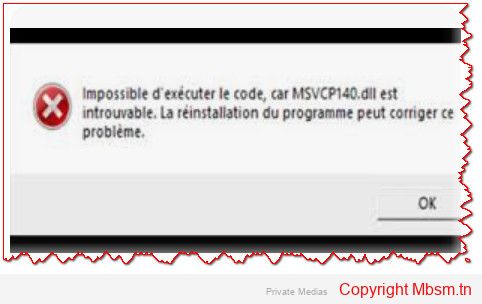
appserv-x64-9.3.0 Error vcruntime140d.dll

When you encounter an error message indicating that the vcruntime140d.dll file is missing or not found while running an application like appserv-x64-9.3.0, it usually means that the application depends on the Visual C++ Redistributable library that contains this file. In the case of the error mentioning vcruntime140d.dll, it indicates that the application is looking for a development-specific version of the library (the d in the filename denotes the debug/development version).

To resolve this issue, you can follow these steps:

1. Install the Visual C++ Redistributable Library

Most of the time, the application requires you to install the Microsoft Visual C++ Redistributable. You can download and install it from Microsoft’s official website:

2. Use the Correct Version of vcruntime140.dll

As mentioned, vcruntime140d.dll is the version meant for development. If you’re working in a production environment or on a machine that doesn’t have development tools like Visual Studio, you may need to use the regular version of vcruntime140.dll instead of the debug version.

  • You can search for the regular version (vcruntime140.dll) online and download it from trusted sources like Microsoft’s official website or trusted software distribution platforms.

3. Place the File in the Correct Folder

  • In the Same Folder as the Application: Place the vcruntime140.dll file in the same folder where the application throwing the error is located.
  • In the System Folder: You can also try placing the file in system folders like:

    • C:\Windows\System32 (for 64-bit systems)
    • C:\Windows\SysWOW64 (for 32-bit systems)

4. Restart the Computer

After installing the Visual C++ Redistributable or adding the file to the correct folder, restart your computer to ensure the changes take effect properly.

5. Check the Application Version

If you’re using a custom or beta version of the application (like appserv-x64-9.3.0), make sure it is compatible with the installed version of the Visual C++ libraries.

If the issue persists, you may need to install Visual Studio or development tools, which might include the missing file.